
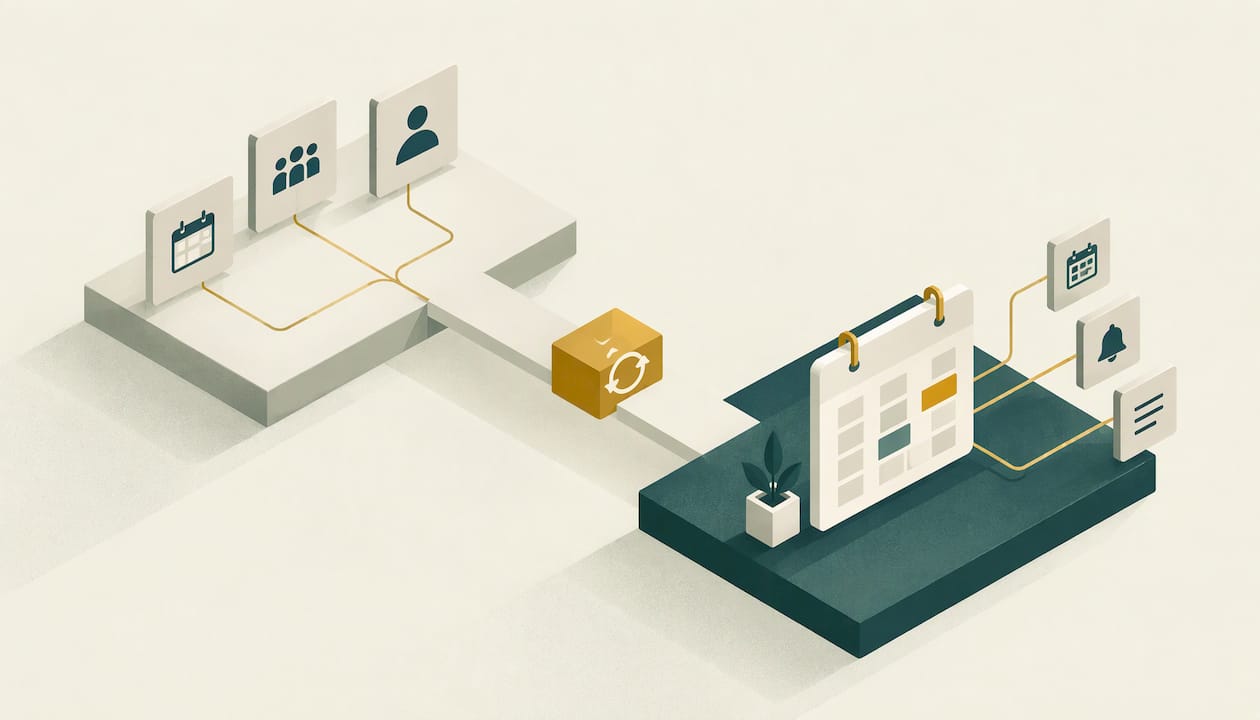
For an independent financial advisor, a scheduling tool is only worth running if it is wired into four things: your calendar, your CRM, your email system and your video meeting tool. Each booking should then block your time, create or update a client record, send a confirmation from your own address and attach a meeting link, with no one retyping anything. Get the order right (map the workflow, connect, configure, test) and the rest is maintenance.
This guide is written for advisors and RIA owners, not for university advising offices, which is what most search results for this phrase describe. It covers what to connect, how the pieces fit, which settings matter, how to test before clients see anything, and what compliance expects of the records that result.
TL;DR
- Connect four things to your scheduler: a two-way calendar sync, your CRM, your own email domain and a video tool that generates a unique link per booking.
- Map who owns booking and where each piece of client information must land before you connect anything. Rushed connections are where integration projects tend to fail.
- Use reminders at roughly 24 hours and 1 hour (or 48, 24 and 2 hours for virtual meetings), reschedule links in every message and 10 to 15 minute buffers.
- Test with dummy bookings, a different device and a "non-technical prospect" before a soft launch to a small group of clients.
- Treat booking confirmations and reminders as client communications: involve your compliance officer on access controls, vendor review and retention.
Table of Contents
- The four integrations that matter most
- Map the workflow before you connect anything
- Connecting the pieces, step by step
- Settings that make the integration feel professional
- CRM-specific details worth knowing
- Test before a client sees it
- Permissions, client data and recordkeeping
- Keeping the integrations reliable
- Our perspective
- Where scheduling fits in a full marketing system
- FAQ
- Sources
The four integrations that matter most
A scheduler on its own is a link and a calendar. The value arrives when it talks to the systems where your client relationships already live. Documentation from one scheduling vendor describes the category-based connection model most tools follow, and it maps neatly onto an advisory practice:
| Connection | What it should do | Why it matters for an advisor |
|---|---|---|
| Calendar (Google, Microsoft 365/Outlook) | Block busy times and receive new bookings | Prevents double-booking against review meetings and personal commitments |
| CRM | Receive each booking as a contact or activity | Keeps the client record the single source of truth |
| Send confirmations and reminders from your own address | Messages land in inboxes instead of being treated as spam from an unfamiliar sender | |
| Video (Zoom, Google Meet, Teams) | Create a unique meeting link per booking | Clients never have to ask for a link, and the link is in the invite |
Two more connections are optional and usually come second: SMS reminders, and an automation layer such as Zapier or Make that connects everything else. Add them once the four core links are stable, not before.
In a multi-advisor firm, each team member connects their own calendar and video account, so bookings use their own accounts rather than a shared login. That detail matters for compliance too, because it ties each meeting to the person who held it.
Calendar links are not calendar sync
A caution before you buy anything: some tools that offer a "calendar link" simply store a booking URL. One advisor platform's help center, for example, states that its calendar link stores a booking URL and does not connect Google Calendar or Outlook or synchronize availability. That is fine for sharing a link, but it is not an integration. When you evaluate a scheduler, look for a two-way sync: changes in either place should show up in the other.
Map the workflow before you connect anything
The most common reason a scheduling setup disappoints has little to do with software. One integration guide advises drawing a flowchart of where information enters and where it must go before wiring calendar, CRM, video and email together, and notes that teams who connect tools without deciding who owns booking responsibility are where most projects fail.
For an advisory practice, a one-page map answers these questions:
- Entry points. Where do people book: your website, an email signature, a webinar follow-up, a referral introduction, a client portal?
- Meeting types. Prospect intro call, discovery meeting, annual review, planning session, onboarding. Each should have its own length, buffer, intake questions and reminder rules.
- Owner. Who watches for failed bookings, handles reschedules and fixes a broken sync? In a solo practice it is you; in a team it should be one named person.
- Destination. For each booking, which CRM fields get filled (name, email, phone, source, meeting type, intake answers) and which activity type is created?
- Follow-up. What happens after the meeting: a thank-you email, a task for your assistant, a nurture sequence for prospects who did not become clients?
The last point is where marketing and scheduling meet. A prospect who books after a webinar is a different record than a client booking an annual review, and your CRM should be able to tell them apart. Our guide on turning webinar registrations into CRM records goes deeper on that handoff.
Connecting the pieces, step by step
Exact menus differ by product, but the sequence is the same.
1. Connect the calendar first
Everything else depends on accurate availability. Choose two-way sync with your primary calendar. If your CRM is also your primary calendar, as is the case for some firms, select it at the calendar connection step. In one popular CRM-scheduling integration, the setup starts in the admin area under Setup > Integrations, where a CRM administrator enters credentials, and the CRM is chosen during the calendar connection step when it is the primary calendar.
2. Connect the CRM
Decide whether each booking creates a new contact, updates an existing one or logs an activity against a record that already exists. For existing clients, matching on email address is the usual method, which is why duplicate and shared emails cause trouble (more on that below). Map your intake questions to CRM fields so answers such as "what would you like to cover?" arrive on the record instead of sitting in an email.
3. Send reminders from your own email system
Automated reminders should send from your own email system so they reach inboxes reliably. Clients recognize your name and domain; they ignore or filter an unfamiliar sender. Our post on reminder emails and the audit trail they need covers why these messages deserve the same care as any other client communication.
4. Connect video
Zoom, Google Meet or Teams should auto-generate a unique link that appears in the calendar invite and in the client's confirmation. A link pasted by hand is a link someone forgets.

5. Add automation last
If your scheduler and CRM do not connect natively, an automation tool can bridge them. One RIA-focused guide describes, for example, a phased rollout in which Week 1 configures meeting types and reminders and Week 2 connects the CRM, such as creating an activity record on booking confirmation through Zapier. That phasing is sensible: stabilize the booking experience, then add the record-keeping layer.
Settings that make the integration feel professional
Once the connections exist, the configuration decides whether clients experience a smooth process. Vendor guides for advisors converge on a similar set of defaults, and they are a reasonable starting point to adapt to your practice:
- Availability. Offer client-facing hours only and block focus time. One advisor-marketing resource suggests offering availability three to five days out and updating it weekly.
- Meeting length and buffers. The same guide recommends 30-minute intro calls with 15-minute buffers. Another booking guide suggests 10 to 15 minute buffers between meetings.
- Reminders. For virtual meetings, that guide suggests reminders at 48 hours, 24 hours and 2 hours before. The prospect guide uses 24 hours and 1 hour. Either cadence is defensible; pick one and apply it consistently.
- Reschedule links. Put a self-service reschedule link in every confirmation and reminder, and set a cancellation policy, for example no reschedules within two hours of the meeting.
- Time zones. Turn on time zone detection so a client in another state does not show up an hour early.
- Custom appointment types. Separate prospect calls from client reviews so each triggers the right reminder, intake form and CRM activity.
The scheduling page itself is part of your marketing. A booking page that explains what the meeting covers and who it is for converts better than a bare calendar grid, a point we develop in how to make your scheduler a landing page.
CRM-specific details worth knowing
Most independent advisors run one of a few advisor-focused CRMs, and the integration details are where small problems hide. Documentation for one widely used CRM-scheduling pairing lists settings that are worth looking for in any tool:
- Pulling the best phone number from the contact record for SMS and phone reminders.
- Detecting a client's time zone from the contact's mailing ZIP code.
- Choosing which CRM activity types block your availability (a "task" probably should not, a "client meeting" should).
- Syncing CRM activity categories to meeting categories on a nightly schedule.
- Mapping booking-form answers to user-defined fields in the CRM.
- An opt-out email list, so colleagues who are copied on client records do not receive client reminders.
All of these appear in the vendor's Redtail integration overview. Even if you use a different CRM, treat the list as a checklist of questions for your own vendor.
Test before a client sees it
A broken booking flow costs you a prospect, and it is invisible: nobody tells you about the person who gave up. Test deliberately.
- Run internal test bookings. Have team members book each meeting type and check the times, the time zones, the confirmation email, the calendar entry and the video link. One guide advises that at least one person play a non-technical prospect and run the full flow on a mobile phone.
- Book from a different device. Confirm the email looks professional, the event lands on your primary calendar and the 24-hour and 1-hour reminders actually arrive.
- Use dummy data at volume if you can. A more rigorous approach is sandbox testing for at least three days with about 50 fake bookings, checking title sync, custom fields, reschedules and cancellations. Solo advisors can do a lighter version; the point is to test reschedules and cancellations, not only first bookings.
- Soft launch. Offer the link to a small group of friendly clients before putting it in your email signature and on your website.
Common failures and their fixes
Two problems come up repeatedly in household-based practices, both documented by the CRM-scheduling vendor mentioned above:
- Spouses sharing one primary email. The two can be merged into a single contact with mixed names and numbers. The fix is a unique primary email on each contact card.
- Wrong time zone for a spouse. The CRM's shared-address feature is not passed through its API, so a spouse without a ZIP on their own record can inherit the organizer's time zone. Save the address directly on the spouse's record. Both cases are described in the Redtail troubleshooting notes.
For a different CRM, the same vendor says that when events or contacts stop syncing, you should confirm that the integration still shows as Connected under its integrations page, then check active CRM credentials, two-way calendar sync and each user's connector authorization. Expired credentials and one user's unauthorized connector are the usual culprits when only some meetings are missing.
Duplicate calendar events are typically a sign that two tools are both writing to the same calendar. Decide which system owns event creation and switch the other to read-only.
Permissions, client data and recordkeeping
Every integration is a new path for client information. A scheduler that receives a name, an email, a phone number and a note about a client's situation is handling nonpublic personal information, and your firm's compliance program should treat it that way.
Three practical checkpoints:
- Vendor oversight. Before connecting a scheduling tool, ask your compliance officer to review the vendor like any other service provider. Security summaries often list access controls, encryption and incident response, and independent reports such as SOC 2 are a common way vendors demonstrate them. One IT services overview notes that the SEC's 2024 amendments to Regulation S-P added incident-response and breach-notification duties, which makes it worth knowing where your client data flows.
- Access. Use two-factor authentication and role-based access, so an assistant who manages your calendar does not automatically see everything in the CRM.
- Records. Confirmation and reminder emails, and any notes created by the booking, can be part of your books and records. Ask your compliance officer or counsel how long to retain them and where, and make sure the integration does not send client communications through a system your firm cannot archive.
If your firm keeps a restricted trading or blackout calendar, keep it in sync with scheduling so that nobody can self-book into a window that should be closed.
Keeping the integrations reliable
Integrations break quietly. A password changes, an employee leaves, a vendor updates a connector, and bookings stop landing in the CRM weeks before anyone notices. A short routine prevents most of it:
- Monthly: make a test booking for each meeting type and confirm it appears in the calendar and CRM.
- After any change: when you change a password, add a team member, switch email platforms or update your CRM, re-test immediately.
- When someone leaves: disconnect their calendar and video accounts, and reassign their meeting types.
- Quarterly: review the reminder wording and cadence, and check no-show rates by meeting type.
- Annually: repeat the workflow map. Firms add services, and the map goes stale.
For a wider view of what to automate once scheduling works, our six CRM workflows to pilot in 90 days is a practical next read.
Our perspective
We built Mastermind Advisor Marketing around a simple observation: advisors do not lose prospects because they lack a calendar link. They lose them in the gaps between systems, where a webinar registrant never becomes a CRM record, a reminder never goes out or a follow-up depends on someone remembering.
That is why we think about scheduling as one link in a chain, not as a standalone tool. The booking page is where a prospect's interest turns into a conversation, and what happens before it (the seminar, the webinar, the content they read) and after it (the nurture emails, the CRM activity) decides whether that conversation happens at all. Our system pairs custom CRM and email automation tools with webinars, seminars, a compliance-friendly content library and advisor websites, so those steps are designed together for the long buying cycles of financial services.
If you are choosing scheduling integrations, start from the journey you want a prospect to take, then connect tools to serve it. The reverse order gives you a lot of connections and no pipeline.
Josh
Where scheduling fits in a full marketing system
A well-integrated scheduler gets the most from the people already interested in working with you. Getting more of those people is a separate job. Our turnkey system for independent advisors includes customized lead-generation webinars, fully produced in-person and virtual seminars, a compliance-friendly content library, automated email drip campaigns, scheduled social media content and advisor websites, with integration to custom CRM and email automation tools.
If you want the booking step to be the end of a pipeline built for advisors, see our services or read how to automate lead capture for advisors.
FAQ
Which scheduling integration should I set up first?
Start with two-way calendar sync, because every other connection depends on accurate availability. Add the CRM connection next so each booking creates or updates a client record. Email, video and automation layers can follow once those two are stable.
How many reminders should clients get?
Advisor-focused vendor guides suggest either 48, 24 and 2 hours before a virtual meeting, or 24 hours and 1 hour before. Both aim to reduce no-shows. Choose one cadence, include a reschedule link in each message and keep the wording consistent with your firm's communications policy.
Do scheduling emails need to be kept for compliance?
They can be part of your firm's books and records, depending on content and your registration. Ask your compliance officer or securities counsel how long to retain them and how to archive them, and choose tools that send from a system your firm already supervises.
Why are my bookings not appearing in the CRM?
Check that the integration still shows as connected, that the CRM credentials are active, that two-way calendar sync is on and that each user has authorized their own connector. If only some clients are affected, look for shared emails or missing ZIP codes on their records.
Can I use a calendar link instead of a full integration?
A link lets clients book, but it does not by itself sync availability or write to your CRM. If you want bookings to block your calendar and create records automatically, choose a scheduler with true two-way calendar and CRM connections.
Sources
- DaySchedule: connections for calendars, video, email, CRM and automation
- Kerdora Help: integrations and data connections
- GReminders: Redtail CRM integration overview
- GReminders: Wealthbox integration overview
- Schedly: practical guide to integrating scheduling tools
- Bookafy: setting up appointment booking software for financial services
- AdvisorFinder: prospect engagement guide
- Tech Advisors: IT support for financial services firms